Checklist before uploading DXF, STEP or STP for an order
Check the file type, scale, geometry, revision, and production choices before continuing to configure and order the metal part.
3 min readWritten by Metalldel.no ASPublished
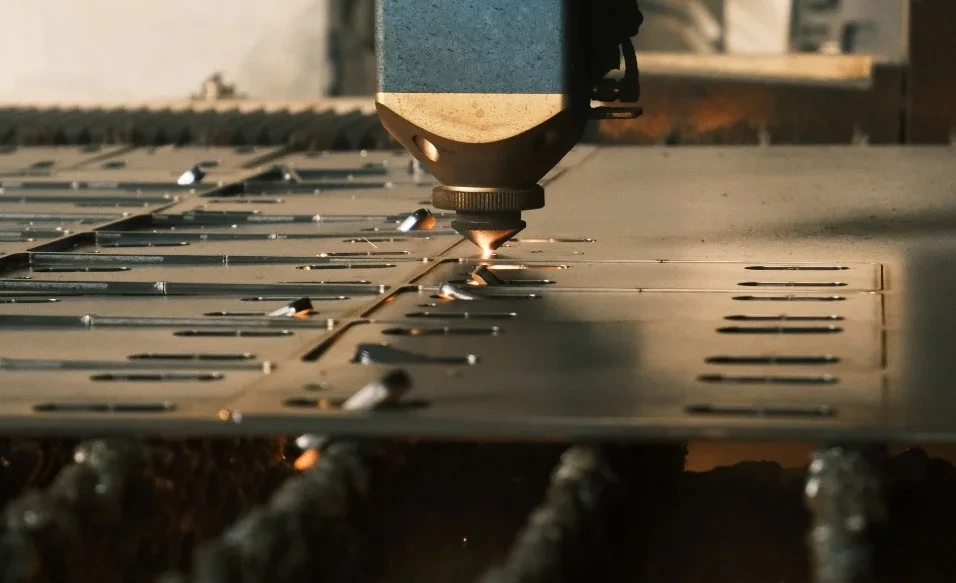
Laser cutting outlines in sheet metal.Image supplied for use on Metalldel.no.
A reliable online order starts with the file, preview, and part choices describing the same result. Metalldel accepts DXF, STEP, and STP, but the format alone does not prove that the geometry is correct. Run this check on the exact revision you intend to order.
1. Choose the file that best describes the part
Use the format that makes the required geometry clear
File
Use it when
Check before upload
DXF
The part can be described as a finished flat cutting profile.
Unit, scale, closed profiles, duplicates, and unrelated drawing content.
STEP/STP
The finished shape must be understood in 3D, for example when the part has bends or belongs to an assembly.
The correct configuration, expected bodies or components, principal dimensions, and finished shape.
2. Check the DXF as a production input
Export the finished flat profile, not an incidental sketch or an old drawing revision.
Confirm the file unit and compare at least one known principal dimension with the preview.
Look for open profiles, duplicate lines, and overlapping geometry that can make the cutting path ambiguous.
Remove borders, dimension text, construction lines, and other geometry that should not be cut.
Confirm that every hole, slot, and cut-out to be produced is present.
3. Check the STEP or STP model in 3D
Activate the correct configuration before export and reopen the exported file if your CAD tool allows it.
Confirm that the number of parts, bodies, and instances matches what you expect to order.
Remove reference geometry and context-only components that should not be manufactured.
Compare principal dimensions and the finished shape with the source model and Metalldel preview.
For bent parts, make sure direction, angles, radii, and critical flange dimensions can be understood from the model or an accompanying drawing.
4. Make the file and order choices agree
Checks before adding the part to the cart
Check
Question you should be able to answer
Revision
Is this the approved file revision, and is the filename clear?
Material and thickness
Is the choice right for the part's use, and does the configurator show the combination as available?
Services
Does the part need bending, threading, deburring, or finishing, and is the service available for the selected part?
Quantity
Does the quantity belong to the correct part and revision?
Visible side
Is the finish direction or visible face clear when it matters?
5. Make one final visual check
Open the part in the preview and rotate or zoom to the details you know.
Compare at least one known dimension and check that no geometry sits far away from the part.
Read the material, thickness, services, and quantity as one complete order.
Stop and ask for clarification if the preview or selections cannot be explained from the source design.